Why type commands when you can click? Because the computers that hold large biological data, such as a sequencing facility’s server or a university compute cluster, often have no desktop and no mouse. You log in and type. And a command you have written once can be repeated on 200 files instead of 200 rounds of clicking.
Today you will:
open a terminal and read its prompt;
ask where you are (pwd) and what is there (ls);
create folders (mkdir) and move between them (cd);
recover calmly when a command fails.
The folders are the same ones you clicked through on Days 1 and 2. We use these commands again on Day 4 and on the remote computer in week 5.
Same folders, another window
The terminal is a window where you type. The shell is the program that reads and runs what you type.
Windows: open Ubuntu. Mac: open Terminal.
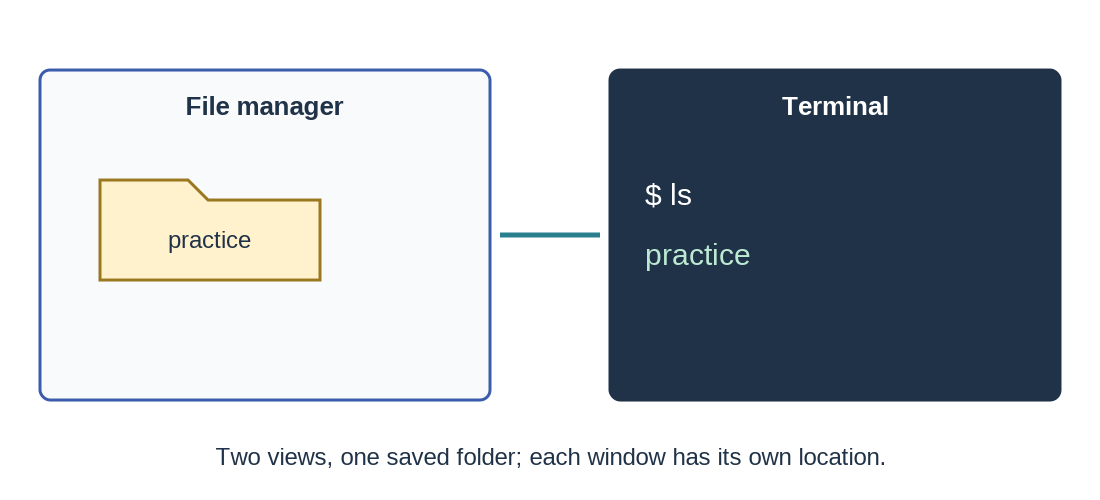
Nothing new is stored. The terminal shows the same folders as the file manager, described in words instead of icons.
A file-manager window and a terminal listing show the same practice folder.
Read the prompt before typing
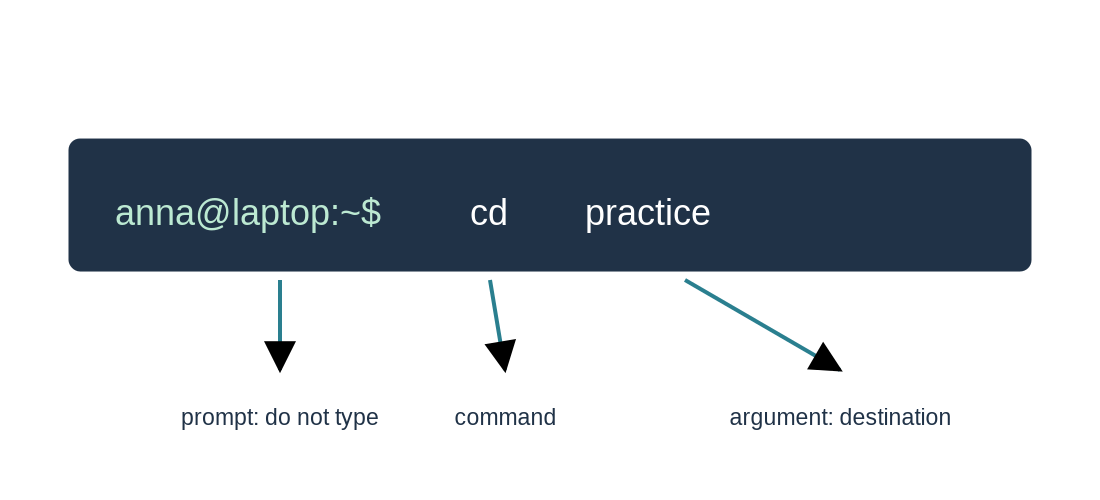
The terminal prompt, the cd command and the practice destination have different roles.
The prompt (anna@laptop:~$, or ending in % on a Mac) means “ready”. Do not type it.
Then comes the command (cd), then its argument: what it acts on (practice).
Press Enter to run it.
Where am I? What is here?
$ cd
$ mkdir -p introcomputing-shell/practice
$ cd introcomputing-shell
$ pwd
/home/anna/introcomputing-shell
$ ls
practice
cd alone takes you to your home folder. It prints nothing.
mkdir -p makes the folder introcomputing-shell and practice inside it. Also silent.
pwd prints where you are now.
ls lists what is here: the new practice folder.
Your path starts differently (/Users/anna on a Mac); it should end in introcomputing-shell.
Move down, and back up
$ cd practice
$ mkdir seedlings
$ mkdir observations
$ ls
observations  seedlings
$ cd seedlings
$ pwd
/home/anna/introcomputing-shell/practice/seedlings
$ cd ..
$ pwd
/home/anna/introcomputing-shell/practice
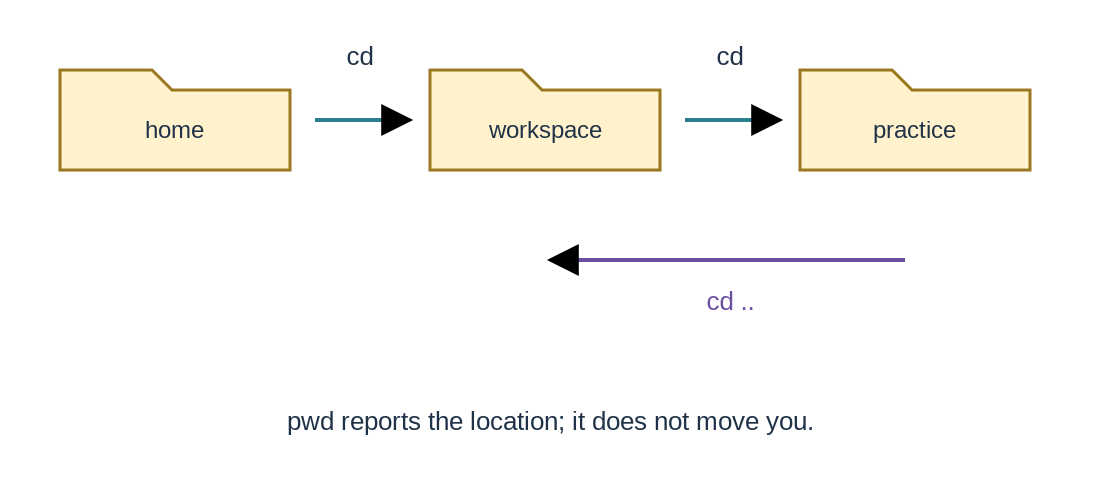
cd moves into child folders; cd .. returns to the parent folder.
.. means the folder one level up; ~ means your home folder.
Each window has its own location
explorer.exe . (Ubuntu on Windows) or open . (Mac) opens the current folder in the file manager. The . means “here”.
Clicking into a folder there does not move the terminal. Check with pwd.
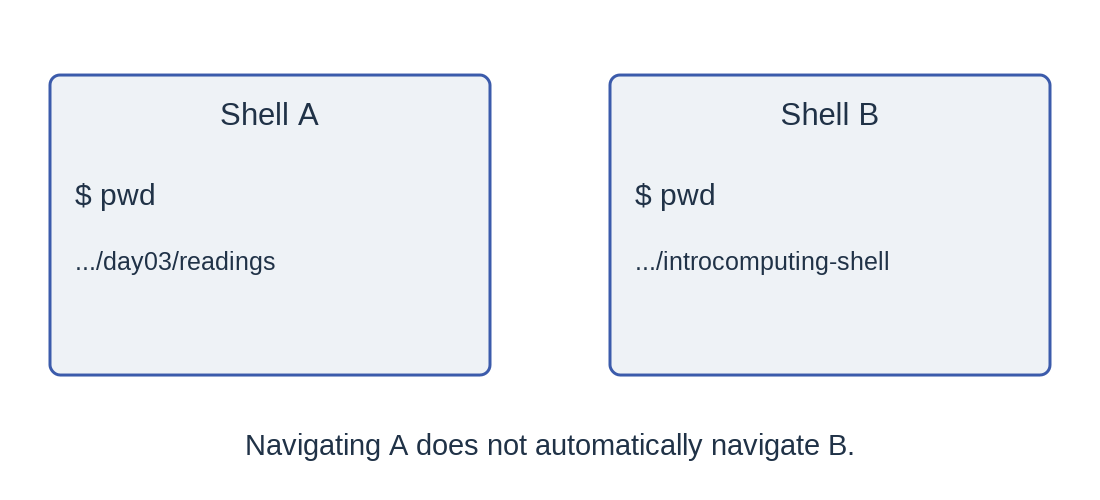
Two terminal windows can also stand in different folders.
Two terminal windows keep separate current folders.
Silence often means success
$ cd observations
$ ls
$ pwd
/home/anna/introcomputing-shell/practice/observations
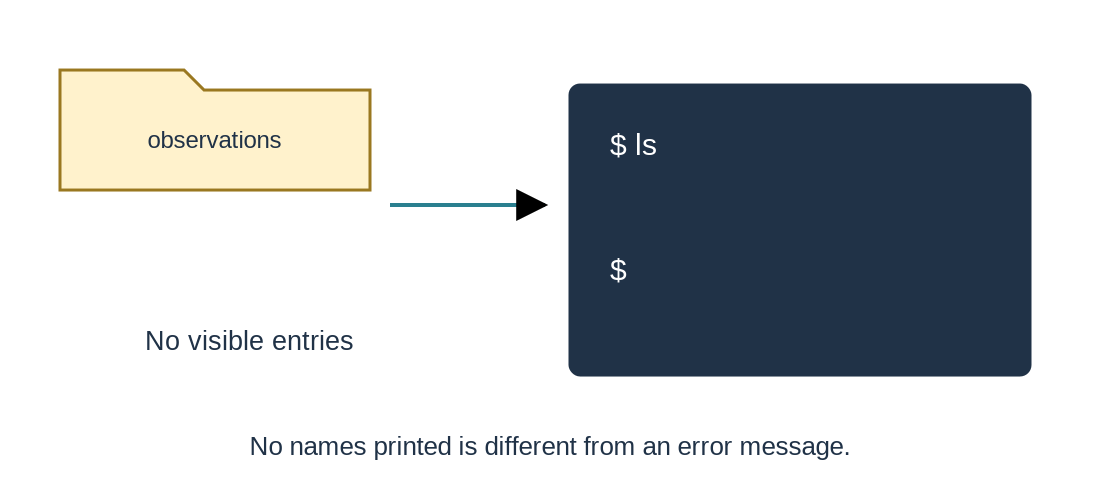
ls in an empty folder prints nothing. The folder exists; it is just empty.
Many commands, such as mkdir, print nothing when they work.
A real problem prints a message: read it.
ls in the empty observations folder prints no names before the next prompt appears.
When a command fails, you stay put
$ pwd
/home/anna/introcomputing-shell/practice
$ cd no-such-folder
bash: cd: no-such-folder: No such file or directory
$ pwd
/home/anna/introcomputing-shell/practice
$ cd Observations
bash: cd: Observations: No such file or directory
$ cd ~/introcomputing-shell
$ pwd
/home/anna/introcomputing-shell
The error names the folder it could not find. pwd shows you did not move.
Capitals matter: the folder is observations, so Observations fails on Ubuntu.
Lost? cd ~/introcomputing-shell brings you back from anywhere.
Spaces split a name in two
$ mkdir field notes
$ ls
field  notes
$ mkdir "field notes"
$ ls
field  'field notes'  notes
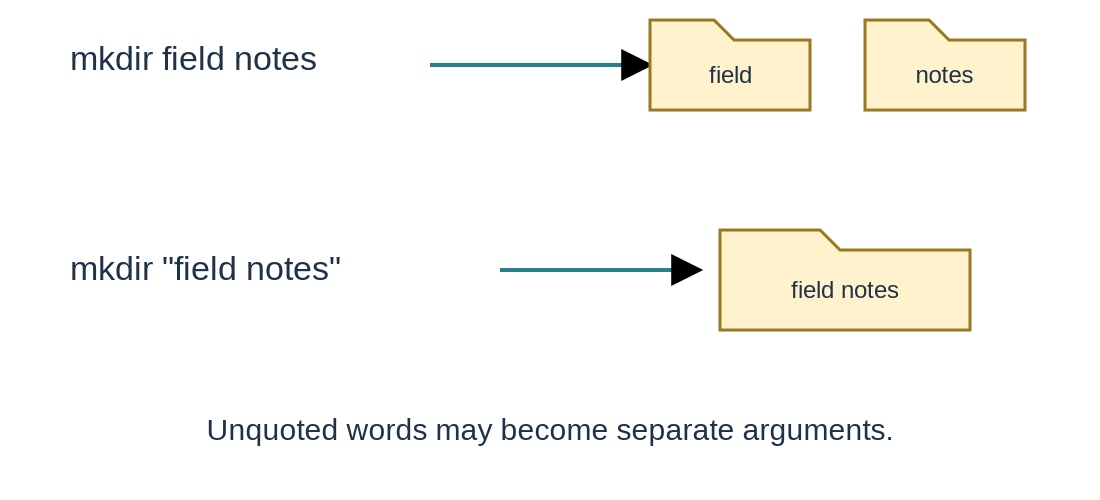
Without quotes the shell splits at the space: two folders.
With quotes: one folder, field notes. (ls shows it in quotes.)
Easier: names without spaces, such as field-notes.
Unquoted mkdir field notes creates two folders; quoted “field notes” creates one.
Keys that save typing
Tab completes a file or folder name. Type cd pra, press Tab.
Up arrow brings back the previous command. Read it before pressing Enter.
Ctrl+C stops a running command or clears a half-typed line. It does not copy.
Copy and paste in the terminal: Ctrl+Shift+C / Ctrl+Shift+V (Ubuntu), Command+C / Command+V (Mac).
Tab completion also prevents typos: it only completes names that really exist.
Worked example: a route between neighbours
The folders were made with mkdir -p beforehand.
$ cd route-challenge/results/notes
$ pwd
/home/anna/introcomputing-shell/route-challenge/results/notes
$ cd ../../inputs
$ pwd
/home/anna/introcomputing-shell/route-challenge/inputs
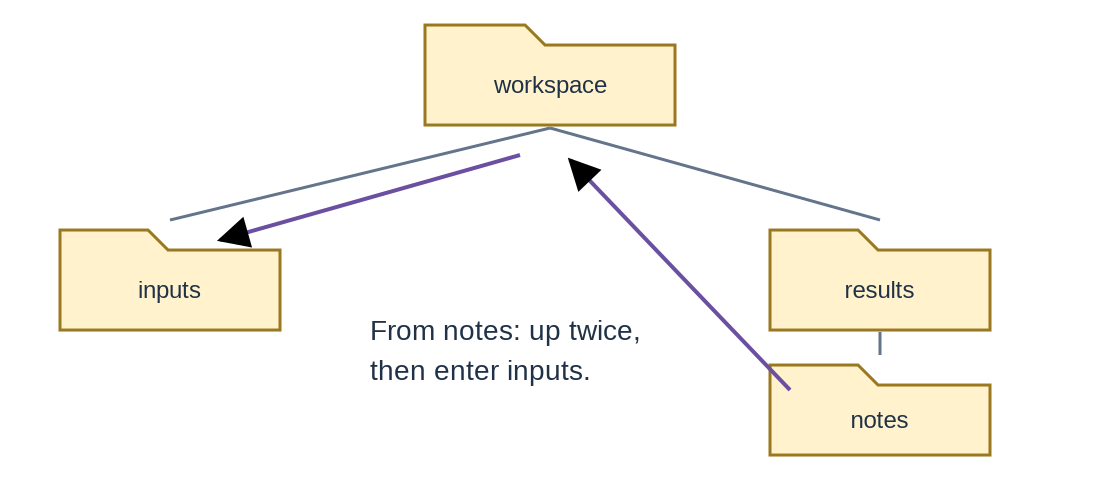
../../inputs: up to results, up to route-challenge, then into inputs.
From notes, the route to inputs goes up two levels and then into inputs.
A route only works from the folder it was written for, so write down the start too.
Check yourself
You run cd seedlings. Did any file move?
ls prints nothing. Did it fail?
cd Observations gives an error. Where are you now?
Which of pwd, ls, mkdir, cd creates something?
Summary
The terminal shows the same folders as the file manager, in words.
pwd tells you where you are; ls what is there.
mkdir makes a folder; cd moves you (.. up, ~ home). Moving changes nothing on disk.
No output is often success; an error message tells you what went wrong, and you stay where you were.
Quote names with spaces, or avoid spaces.
Next (Day 4, inspect and unzip): use the terminal to unpack an archive of laboratory files and look inside them.
Now:open the Day 3 exercises. Leave with the introcomputing-shell workspace and navigation-notes.txt in it: your pwd path, the route back from home, and three commands with their meanings.