Unzip and inspect laboratory data

Day 4 — Which samples received the treatment?

Data Analysis in Life Sciences

About this lecture

A lab group sends you lab-data.zip: four seedling pots, two treated and two controls, one length measurement each. Which samples were treated, and are they longer? Data often arrive like this, as a ZIP of several files. Before any statistics you need to see what you received and pick out the right records.

Today you will:

  • list and unpack a ZIP in the terminal;
  • read the manifest that says which file belongs to which sample;
  • pick out lines with grep, count them with a pipe, and save them with >;
  • work on a copy, never on the original.

This is the last shell day. On Day 5 you meet R.

What is in the archive?

$ unzip -l lab-data.zip
Archive:  lab-data.zip
  Length      Date    Time    Name
---------  ---------- -----   ----
      309  1980-01-01 00:00   README.txt
       29  1980-01-01 00:00   measurements/S01.csv
       29  1980-01-01 00:00   measurements/S02.csv
       29  1980-01-01 00:00   measurements/S03.csv
       29  1980-01-01 00:00   measurements/S04.csv
      157  1980-01-01 00:00   samples.tsv
       37  1980-01-01 00:00   field-notes/day1.txt
       40  1980-01-01 00:00   field-notes/day7.txt
---------                     -------
      659                     8 files
  • unzip -l lists what is inside without unpacking anything.
  • 8 files: a README, a manifest samples.tsv, four measurement files, and two field notes.
  • Look before you unpack: you now know what you received and where each file will end up.

Unpack it into its own folder

$ unzip lab-data.zip -d lab-data
Archive:  lab-data.zip
  inflating: lab-data/README.txt
  inflating: lab-data/measurements/S01.csv
  ...
$ cd lab-data
$ ls
field-notes  measurements  README.txt  samples.tsv
$ cat README.txt
SIMULATED LAB-GROUP DATA
Four independent seedling pots, two control and
two nutrient-treated. ... Lengths are millimetres.
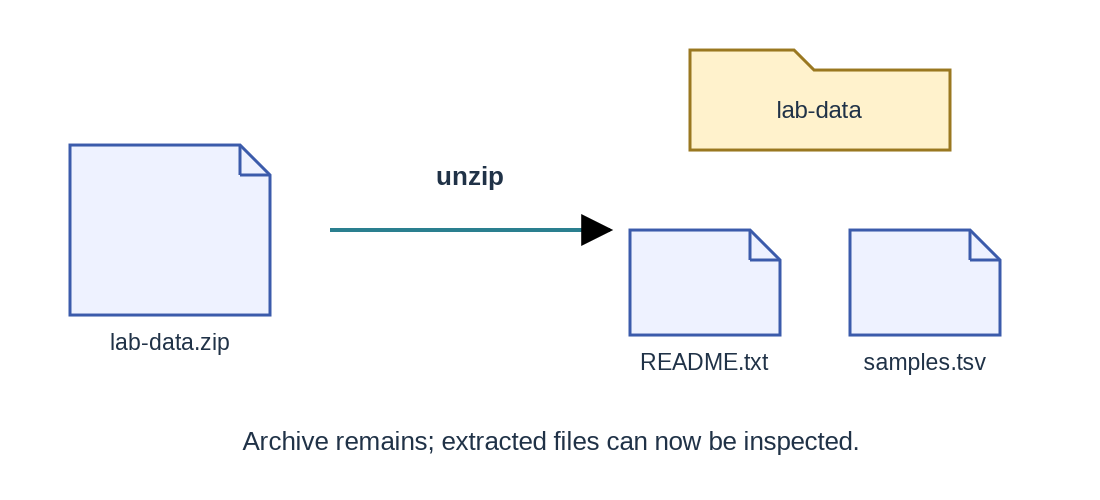
Extracting lab-data.zip creates a folder of ordinary files: README, the samples.tsv manifest, four measurement files and field notes, while the archive itself stays.

-d lab-data names the folder. The ZIP itself stays as it was.

The manifest: which file belongs to which sample

$ cat samples.tsv
sample_id   treatment   file
S01         control     measurements/S01.csv
S02         control     measurements/S02.csv
S03         treated     measurements/S03.csv
S04         treated     measurements/S04.csv
$ wc -l samples.tsv
5 samples.tsv
  • The first line is a header naming the columns. Columns are separated by tabs (a TSV file).
  • Each other line is one sample, with its group and the file holding its measurement.
  • wc -l counts 5 lines: the header plus 4 samples.

Which samples were treated?

$ grep -F treated samples.tsv
S03         treated     measurements/S03.csv
S04         treated     measurements/S04.csv
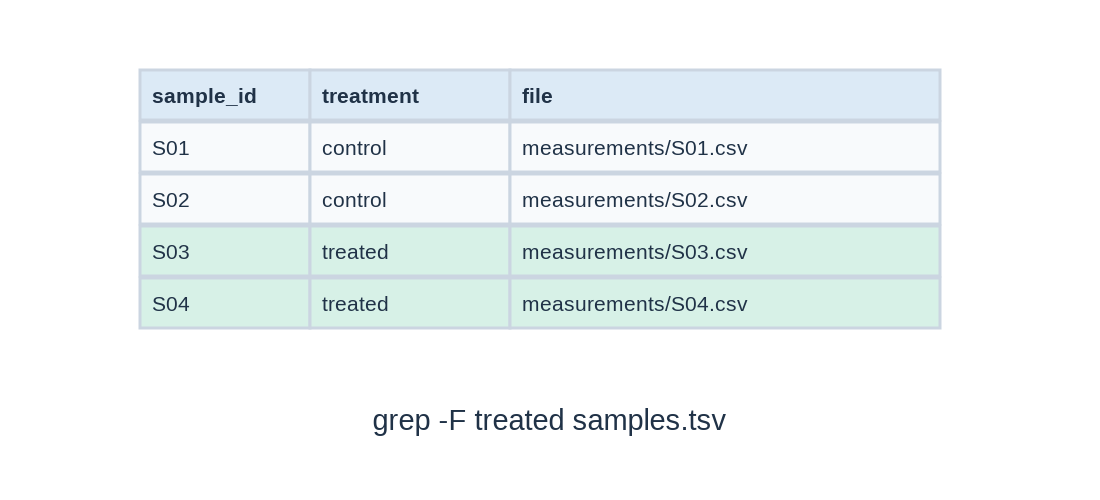
grep prints only the lines that contain treated: S03 and S04.
  • grep prints only the lines that contain the text treated.
  • -F means: search for exactly these letters.
  • Answer: S03 and S04. The header and the control lines are not printed.

Count with a pipe, save with >

$ grep -F treated samples.tsv | wc -l
2
$ grep -F treated samples.tsv > treated-samples.txt
$ cat treated-samples.txt
S03         treated     measurements/S03.csv
S04         treated     measurements/S04.csv
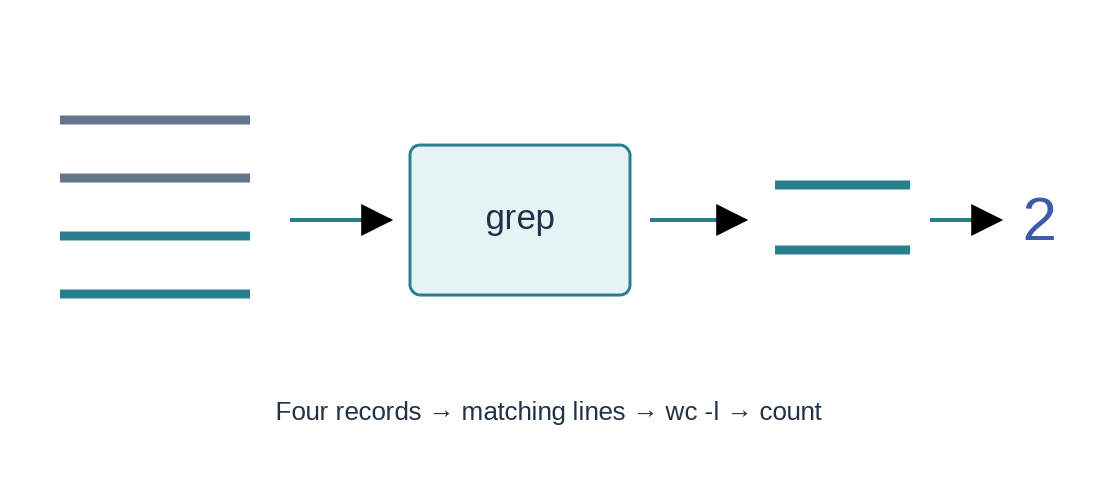
Four sample lines go into grep, two matching lines come out, and wc -l counts 2.
  • | sends grep’s lines into wc -l: 2.
  • > sends them into a file instead; cat shows it. > replaces an existing file, so never write to your input.

grep matches text, not meaning

Suppose S01 had been labelled untreated:

$ grep -F treated search-trap.tsv
S01         untreated   measurements/S01.csv
S03         treated     measurements/S03.csv
S04         treated     measurements/S04.csv
  • untreated contains the letters treated, so S01 is selected too, and the count would be 3.
  • grep cannot know what a word means.
  • Always look at the lines it selected, not only at the number.

Are the treated seedlings longer?

$ cat measurements/S01.csv
sample_id,length_mm
S01,32.1
$ cat measurements/S03.csv
sample_id,length_mm
S03,42.4

Doing the same for all four: controls 32.1 and 35.2 mm, treated 42.4 and 39.8 mm.
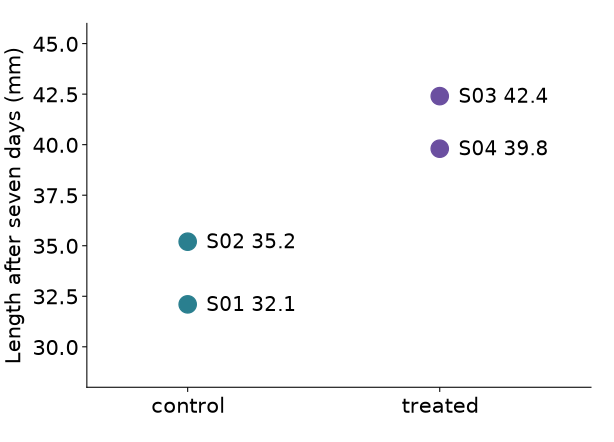
Lengths of the four seedlings after seven days: controls S01 32.1 and S02 35.2 mm, treated S03 42.4 and S04 39.8 mm.

Both treated pots are longer, but two pots per group is a hint, not yet a result.

Work on a copy

$ mkdir working
$ cp samples.tsv working/samples-copy.tsv
$ mv working/samples-copy.tsv working/manifest-practice.tsv
$ ls working
manifest-practice.tsv
$ ls
field-notes  measurements  README.txt
samples.tsv  treated-samples.txt  working
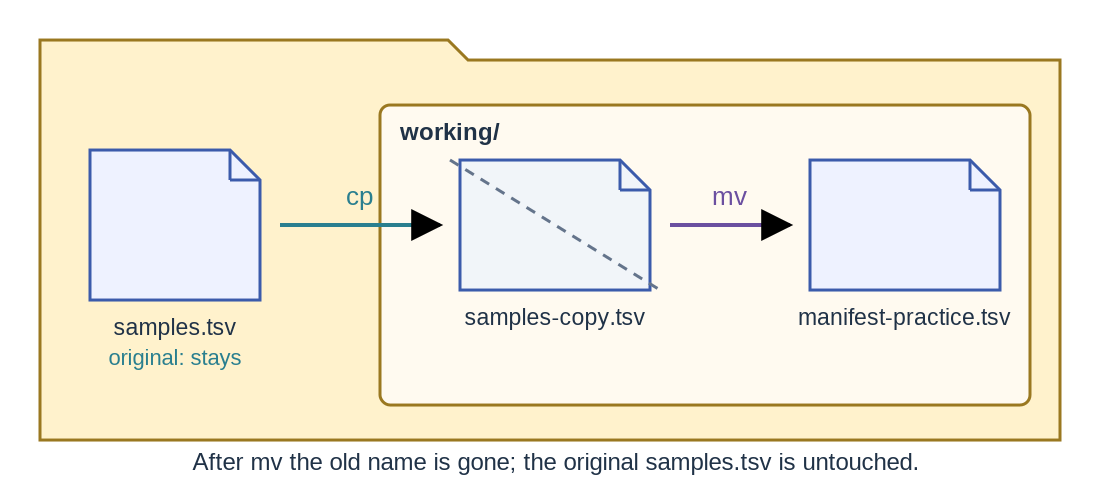
cp makes a second file in working/, mv renames that copy, and the original samples.tsv is untouched.
  • cp copies, mv renames. They print nothing when they work, so check with ls.
  • The original samples.tsv is unchanged.

When a listed file is missing

$ head measurements/S04.csv
head: cannot open 'measurements/S04.csv' for
reading: No such file or directory
$ ls measurements
S01.csv  S02.csv  S03.csv  S04-renamed.csv
$ cat measurements/S04-renamed.csv
sample_id,length_mm
S04,39.8
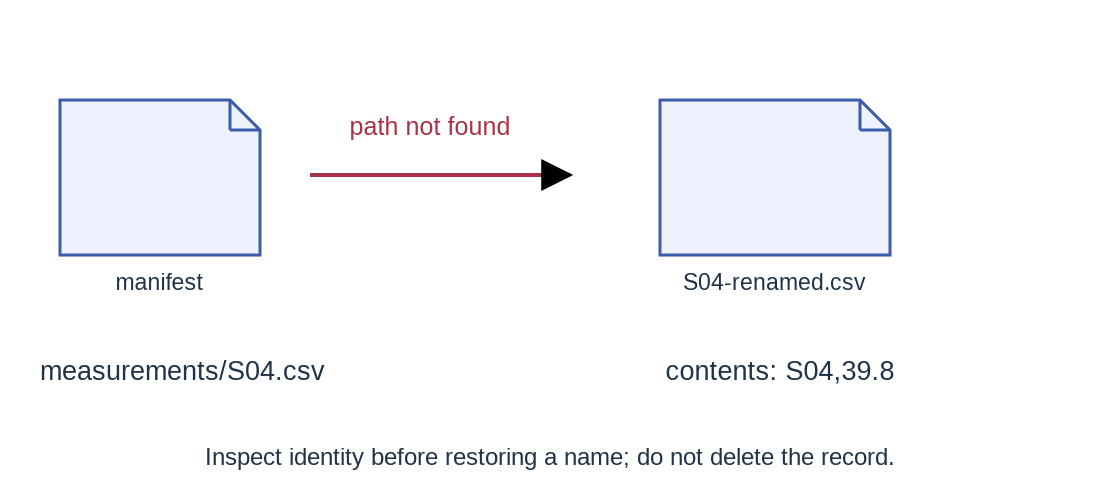
The manifest expects measurements/S04.csv while the folder holds S04-renamed.csv, whose contents still say S04 and 39.8.
  • The manifest promises S04.csv; someone renamed it. The contents confirm it is S04, so restore the name with mv.

Summary

  • unzip -l to look, unzip -d to unpack into a named folder.
  • The manifest has 5 lines: a header and 4 samples.
  • grep -F picks lines by text: 2 treated, S03 and S04. Check the lines, not just the count.
  • | passes output on; > saves it and replaces the destination.
  • Work on copies; the original data stay untouched.

Next (Day 5, meet R): open the course project in RStudio and run a first calculation and plot.

Now: open the Day 4 exercises. Leave with treated-samples.txt, working/manifest-practice.tsv and working/observations.txt.