One workflow, two computers

Day 22 — work on a remote computer and bring the result back

Data Analysis in Life Sciences

About this lecture

Yesterday’s single-cell table needs about 24 GB of RAM; your laptop has 16 GB or less. Research groups solve this by logging in to a bigger, shared Linux computer and running the same R analysis there. But then there are two computers, each with its own files. You rendered a report remotely: where is it, and how do you get it back?

Today you will:

  • connect to a remote computer and find out which computer and folder you are in;
  • copy a project there, check that the copy is complete, and render a report;
  • bring the result back and keep a short record of what is where.

This is a hands-on day. The remote service details (host, login, transfer method) will be supplied separately; until then you rehearse locally. On Day 23 you run a small study from question to report.

Two computers, two sets of files

  • The laptop and the remote computer each have their own disk.
  • Both may contain a folder called course project with a report.Rmd. They are separate copies.
  • A filename means little without saying which computer and which folder.
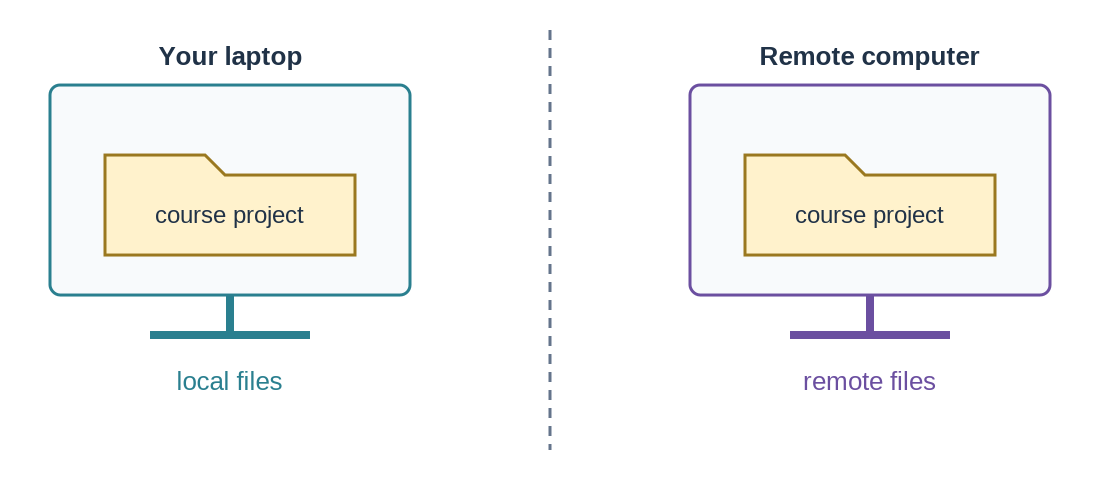
A laptop and a remote computer each hold their own separate course-project folder.

Two ways in: a terminal or a desktop

  • SSH (secure shell) gives a terminal on the remote computer: the same shell commands as Day 3.
  • A remote desktop shows the remote computer’s screen in a window.
  • Neither one copies files for you.
  • The service guide will say whether both see the same home folder.
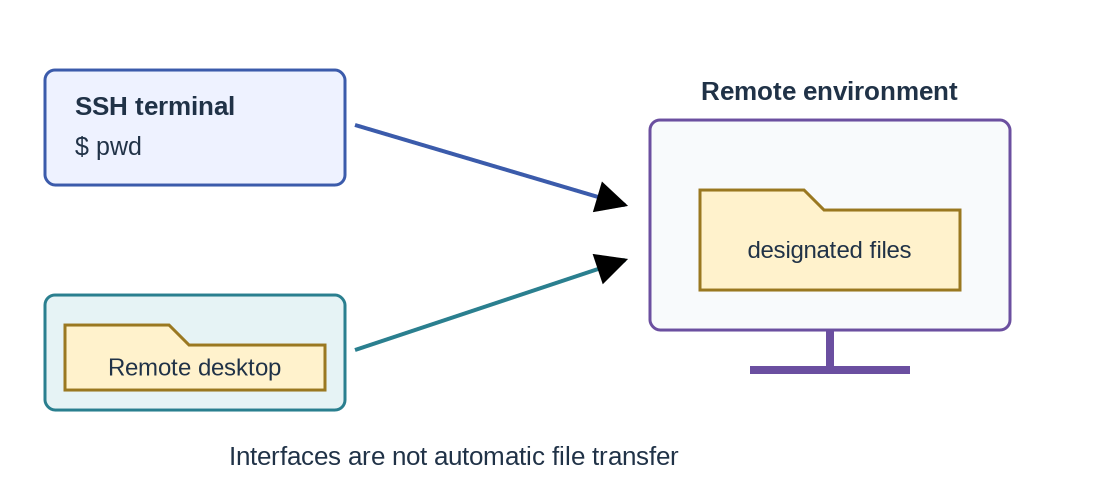
SSH and remote desktop lead to the same remote environment through two different interfaces.

Which computer? Which folder?

$ ssh student@remote
student@remote:~$ hostname
remote
student@remote:~$ pwd
/home/student
student@remote:~$ mkdir introcomputing-practice
student@remote:~$ ls
introcomputing-practice
student@remote:~$ exit
logout
Connection to remote closed.
$ pwd
/home/anna
  • student@remote stands for your login and the computer’s name from the service guide; yours will differ.
  • The prompt changes: student@remote:~$ means the remote computer is listening.
  • hostname names the computer that answered; pwd the folder you are in on that computer.
  • exit ends the connection. Back on the laptop, pwd shows a laptop folder again.
  • Write the answers in reports/remote-log.txt.

Leaving does not delete your files

$ ssh student@remote
student@remote:~$ ls
introcomputing-practice
  • exit closed the session (the connection), not the remote disk.
  • After reconnecting, the folder made before is still there.
  • Same idea as Day 21: closing a process empties its RAM; saved files stay on disk.
  • Whether a running program keeps running after you leave depends on the service.
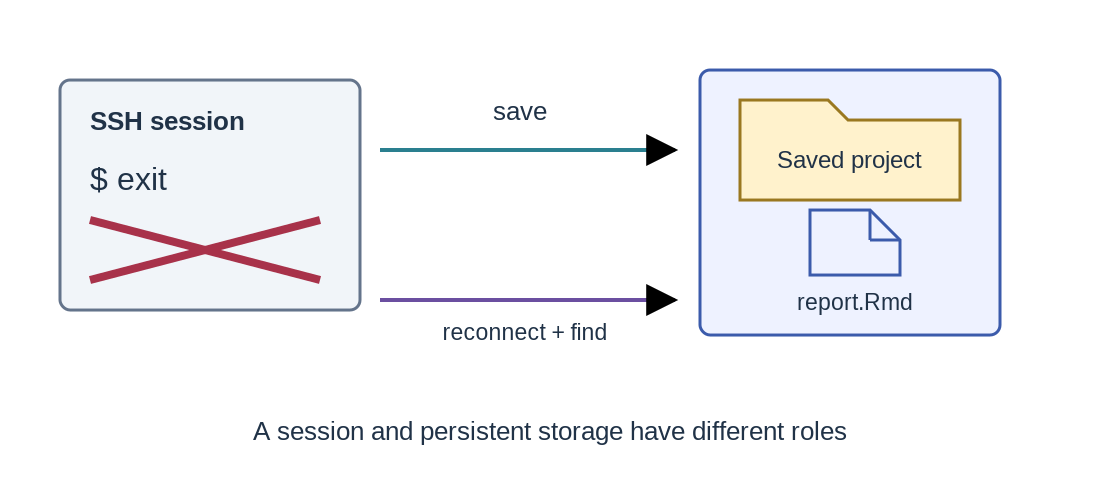
Ending an SSH session closes the connection while the saved project remains in storage.

Moving files: a transfer makes a copy

  • Uploading or downloading creates a second copy in a named place.
  • Before transferring, write down the source, the destination, and the direction.
  • Editing one copy afterwards does not change the other.
  • Transfer the whole project (ZIP), not single files, so relative paths still work.
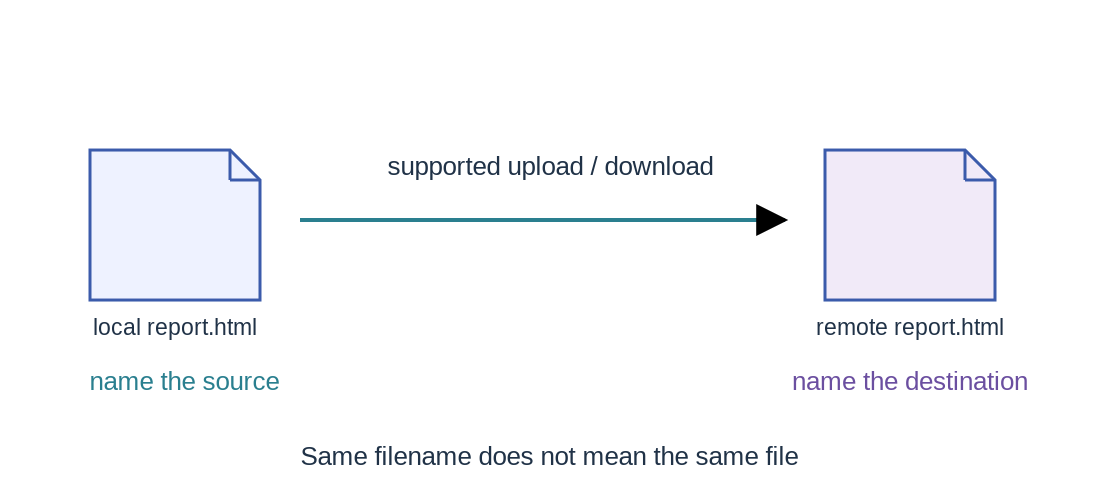
A deliberate transfer copies a report between laptop and remote storage.

Check the copy before you analyse

In the remote R console:

> getwd()
[1] "/home/student/introcomputing-course"
> file.exists("data/algae.csv")
[1] TRUE
> algae <- readr::read_csv("data/algae.csv",
+                          show_col_types = FALSE)
> nrow(algae)
[1] 24
> sum(!is.na(algae$biomass_mg))
[1] 23
> algae$biomass_mg[algae$culture_id == "A19"]
[1] NA
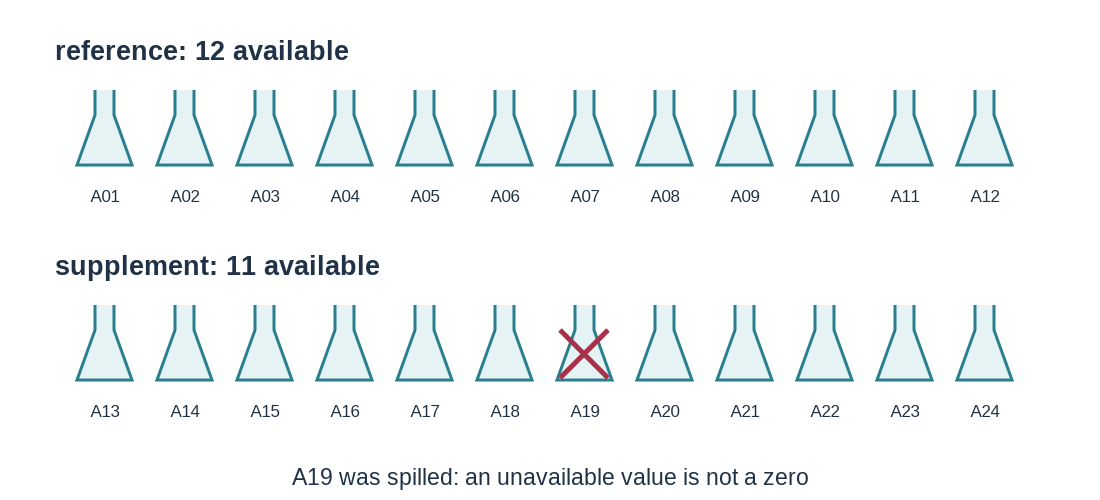
Twenty-four separate culture records, with one unavailable supplement measurement, A19.
  • getwd(): R works in the copied project (placeholder path).
  • 24 cultures, 23 measured, A19 missing: the same answers as on the laptop, so the copy is complete.

Render remotely, then bring the result back

student@remote:~$ cd introcomputing-course
student@remote:~/introcomputing-course$ Rscript -e 'rmarkdown::render("report.Rmd")'
processing file: report.Rmd
...
Output created: report.html
student@remote:~/introcomputing-course$ ls
data  introcomputing.Rproj  output  report.html  report.Rmd  reports
  • Rscript starts a fresh R and renders the saved report, like Knit after a restart.
  • ls shows the new report.html, on the remote disk. Download it to a named laptop folder and open that copy.
  • To recalculate later you need the source and data, not only the HTML.
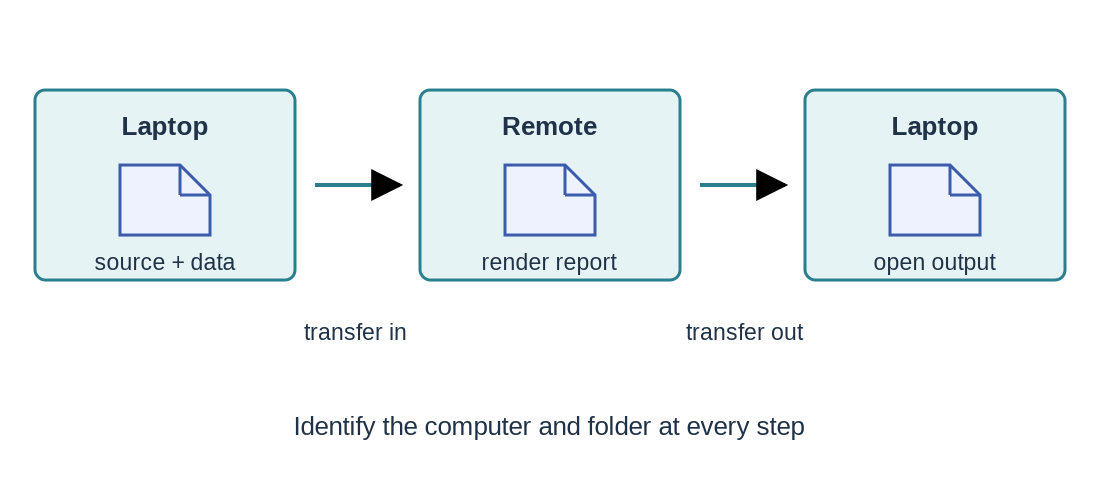
Source and data are transferred in, the report is rendered remotely, and the output is transferred back.

The report is missing on my laptop

The report rendered remotely, but local Downloads is empty. Before rendering again, check:

  1. Where did rendering write the HTML on the remote computer?
  2. Was that file actually transferred?
  3. Which destination folder received it?
  4. Which copy did the browser open?

An empty Downloads folder does not mean the render failed. Rendering again only makes another copy in the same unexpected place.

Plan the copy before you make it

Write reports/transfer-plan.txt first:

  • source computer and project path;
  • destination computer and project path;
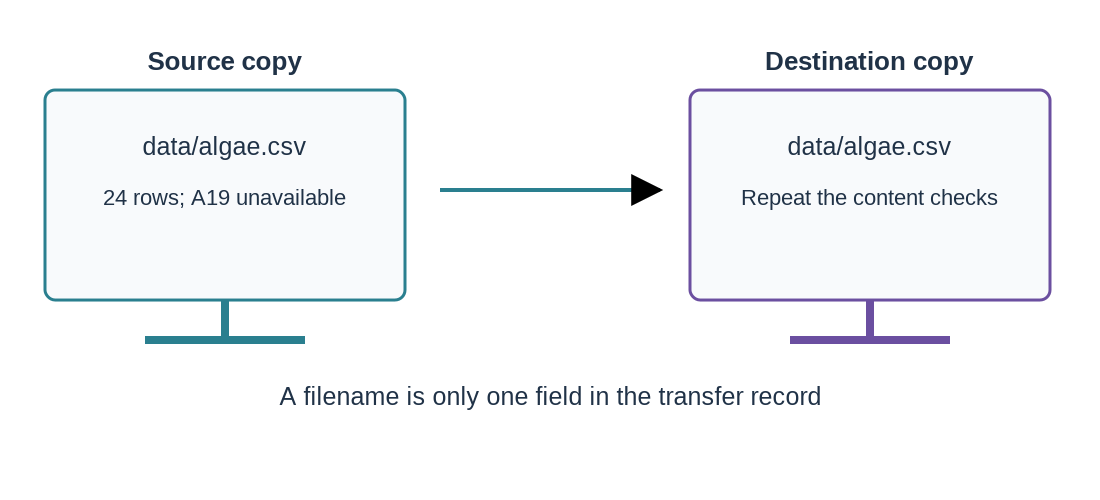
  • the input file (data/algae.csv) and the checks to repeat;
  • the output you expect back.

Source and destination copies name the algae file and the content checks to repeat on each side.

Same filename, different contents

  • Two copies of receipt.txt can hold different versions.
  • Change one copy, save it, and reopen both: the other copy does not change.
  • Open the saved files and compare the text before deciding which copy to send.
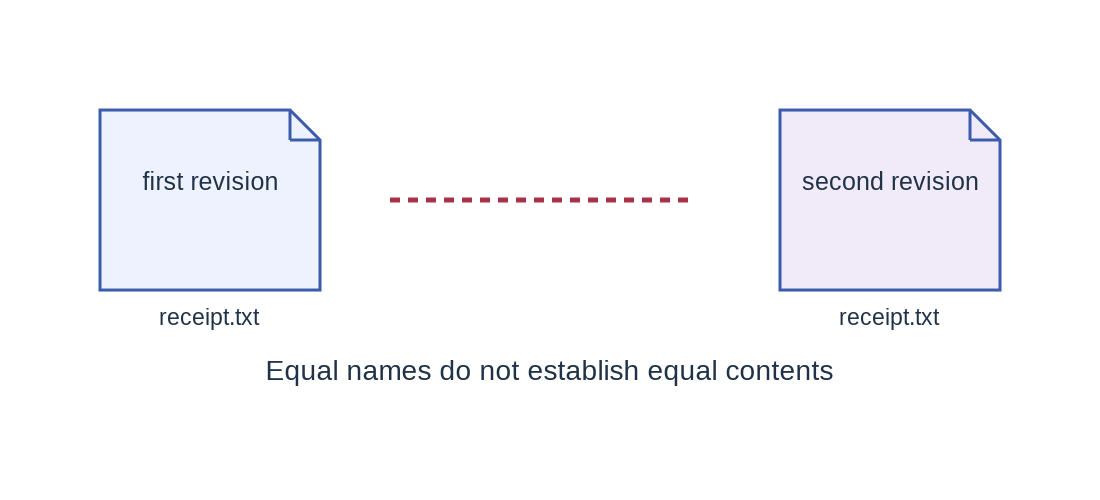
Two files named receipt.txt contain a first and a second revision.

An unsaved edit has not travelled

  • What you see in an editor can differ from the saved file.
  • A transfer copies the saved file.
  • Save, close, reopen, then transfer.
  • Likewise, editing report.Rmd does not change an old HTML until you render again.
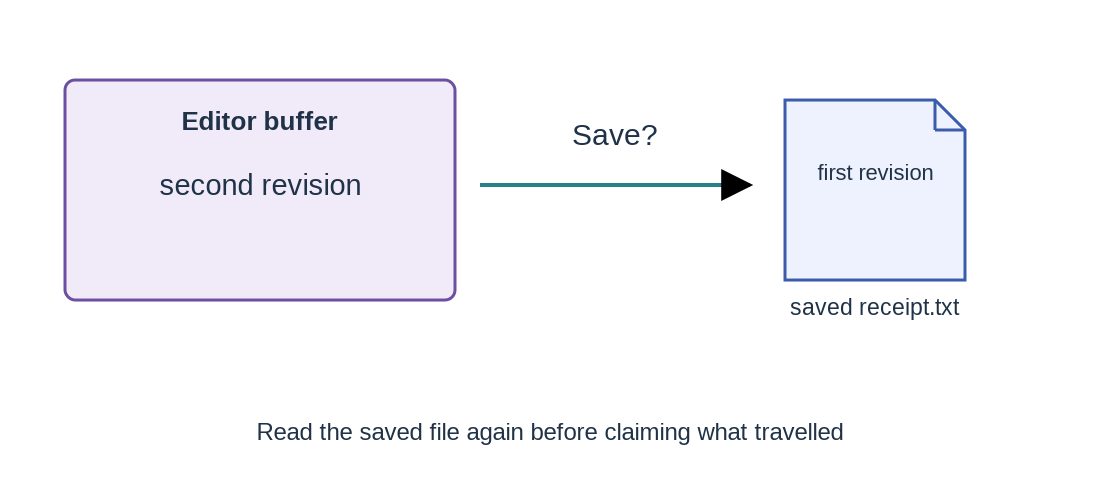
A changed editor buffer and the saved receipt contain different revisions until the file is saved.

Equal size is not equal contents

> writeLines("version 1", "output/receipt-a.txt")
> writeLines("version 2", "output/receipt-b.txt")
> file.size(c("output/receipt-a.txt",
+             "output/receipt-b.txt"))
[1] 10 10
> identical(readLines("output/receipt-a.txt"),
+           readLines("output/receipt-b.txt"))
[1] FALSE
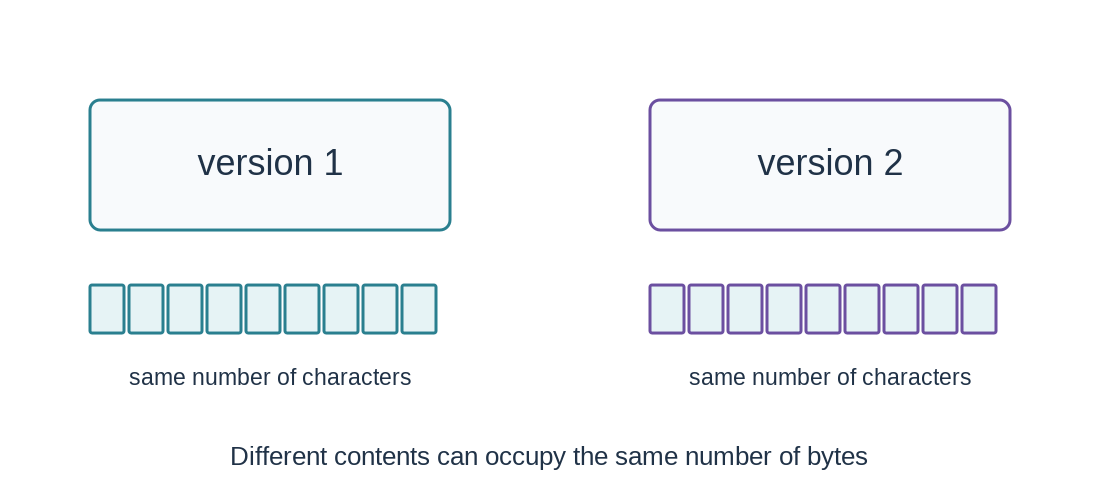
  • Both files are 10 bytes, yet their text differs.
  • Equal sizes or row counts are a useful first check, not proof.
  • identical(readLines(a), readLines(b)) compares the actual text.

Two notes with different version text occupy the same number of character positions.

Summary

Idea Key fact
Why remote data larger than laptop RAM need a bigger computer (Day 21)
Two computers each has its own disk; same folder names are separate copies
SSH / remote desktop a terminal or a screen on the remote computer; neither copies files
hostname, pwd, exit which computer, which folder; leave without deleting saved files
Transfer makes a copy; name source, destination and direction
Checks repeat nrow, available counts and named records after copying; equal size ≠ equal contents
Missing result find it on the remote side, then check the transfer and destination

Next (Day 23, mini-study): plan and analyse a small biological study from question to report.

Now: Open exercises · Quiz. Leave with reports/remote-log.txt, reports/transfer-plan.txt, the receipt and the audit. Until access details arrive, do the local rehearsal and mark the remote steps pending.