Git as undo button and lab notebook
Part 2: A project that lasts
About this lecture
From now on the agent edits the files of your own project, not copies of example data. Before it does that at scale, we need a way to see exactly what it changed and to take any change back. Git gives both: it keeps dated snapshots of your project folder, each with a short note saying what was done and why.
- A commit is a snapshot of the whole folder, with a message: an entry in your lab notebook.
- The history shows every snapshot; the diff shows exactly which lines changed.
- Going back is one sentence to the agent: undo a bad edit, or bring back last week’s version.
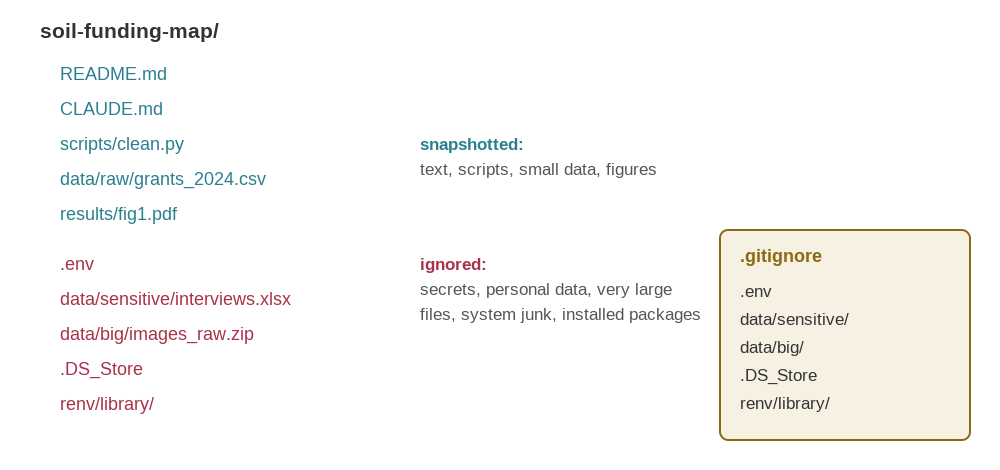
.gitignorekeeps secrets, personal data and huge files out of the snapshots.- You do not type git commands. The agent does; you read what it proposes and check the result.
This is a hands-on unit. Sharing the history with others comes next, in GitHub. Branches get only a mention.
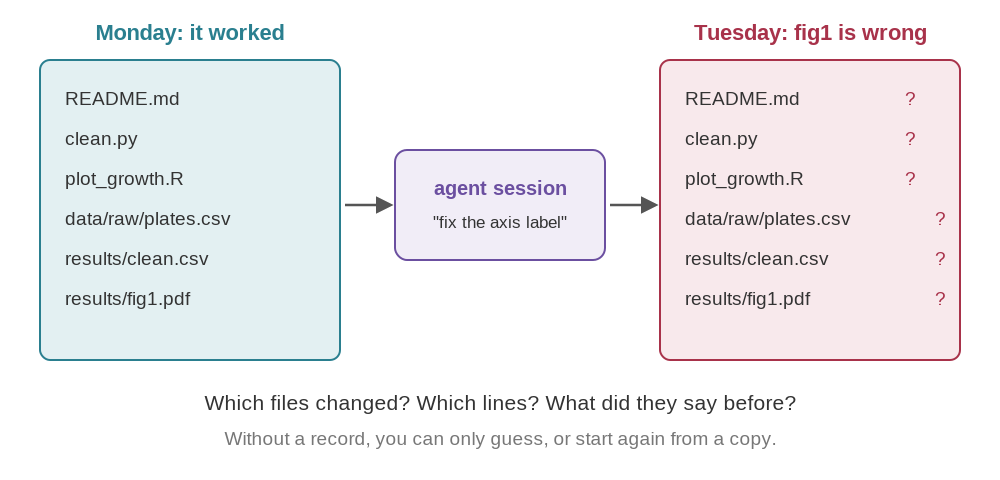
The agent changed six files, and now the figure is wrong
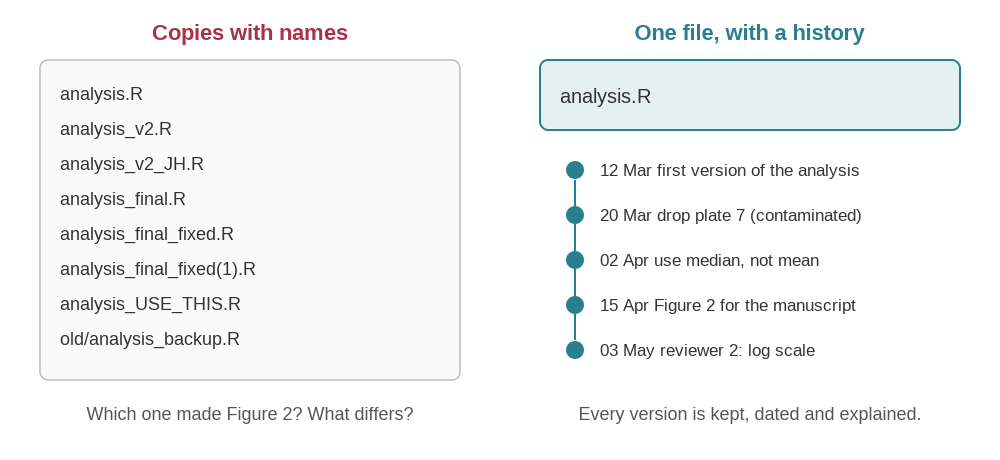
Copies with names do not scale; a history does
Git takes snapshots of a whole folder
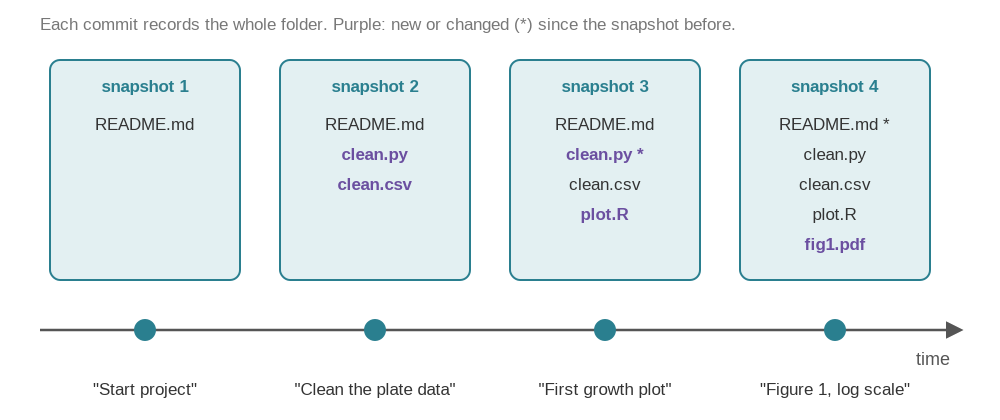
- A snapshot is called a commit. It records the state of every file in the folder at that moment.
- You decide when to take one. Nothing is saved in the history until you commit.
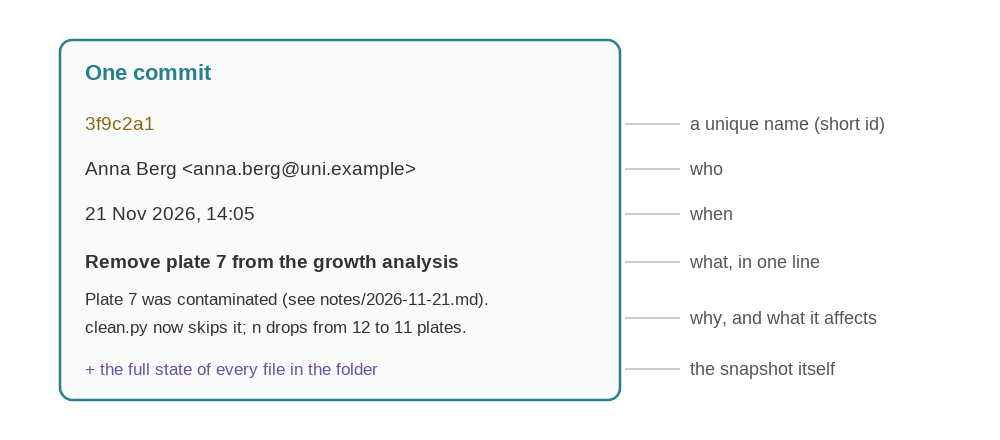
A commit is a snapshot with a name, an author, a date and a message
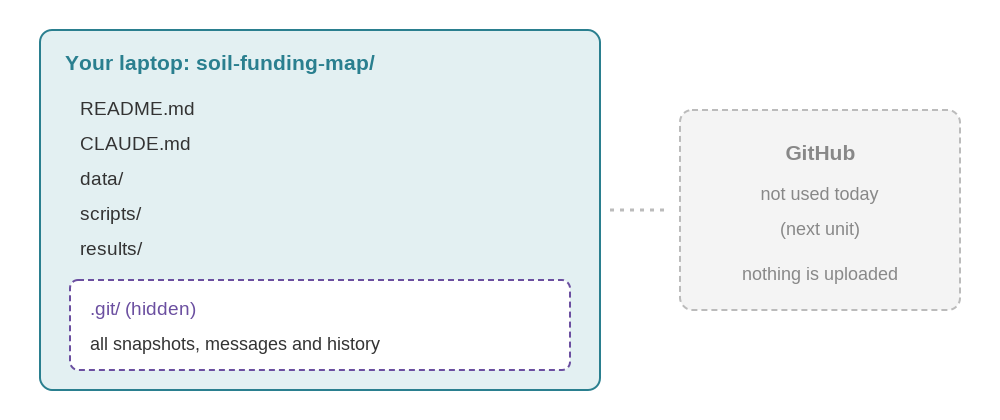
Git lives inside your project folder; nothing leaves your computer
Five words cover almost everything
| Word | Meaning | You say to the agent |
|---|---|---|
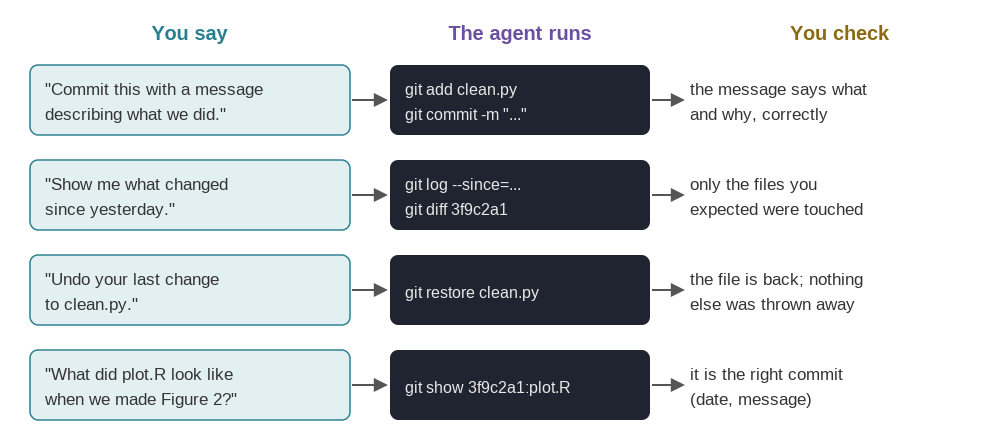
| repository (repo) | a folder whose history git keeps | “Make this folder a git repository.” |
| commit | a snapshot with a message | “Commit this with a message describing what we did.” |
| history (log) | the list of commits | “Show me the history as a short table.” |
| diff | the exact lines that changed between two states | “Show me what changed since yesterday.” |
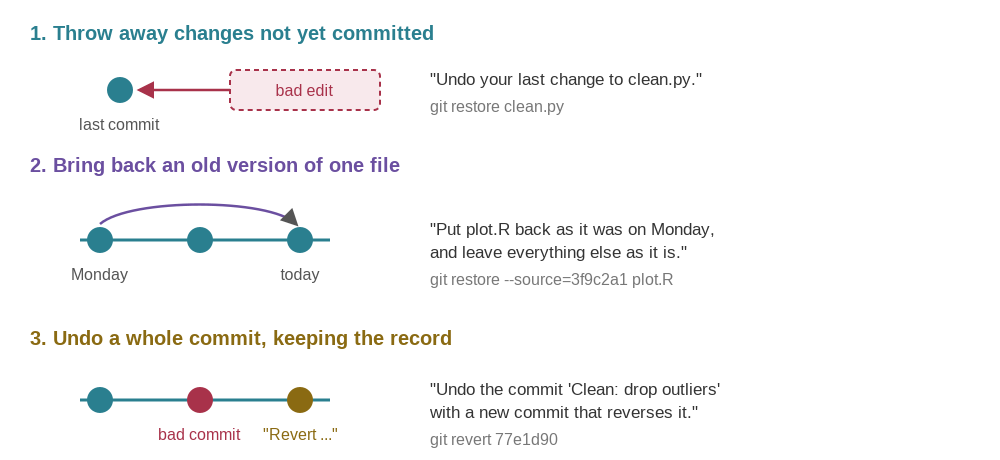
| restore / revert | go back: one file, or one whole commit | “Undo your last change to clean.py.” |
Ignore the rest of git’s vocabulary for now. When the agent uses a word you do not know, ask.
You say what you want; the agent types the git command
If git is missing, the agent installs it with you
Ask first, without installing: “Is git installed on this computer? Only check.” (You may have done this in Terminal survival kit.)
| System | Usual route | Note |
|---|---|---|
| Mac | Apple’s Command Line Tools (xcode-select --install), or Homebrew |
a system window asks you to confirm |
| Windows | Git for Windows, from git-scm.com or with winget |
accept the default choices; also lets Claude Code use Bash |
| Linux | the system’s package manager | needs your password |
| Managed laptop | the university software centre | ask IT if you cannot install |
Then git needs your name and email once. It writes them into every commit.
Choose the name and email in your commits knowingly
- Git writes them into every commit. Anyone who later gets a copy of the history can read them.
- Today the history stays on your laptop. In GitHub it may become public.
- Your work email is usually fine. GitHub also offers a private “noreply” address, in your GitHub email settings, if you would rather not publish your email.
- The agent may add a line naming itself as co-author of a commit. That is useful: it is part of your record of AI use.
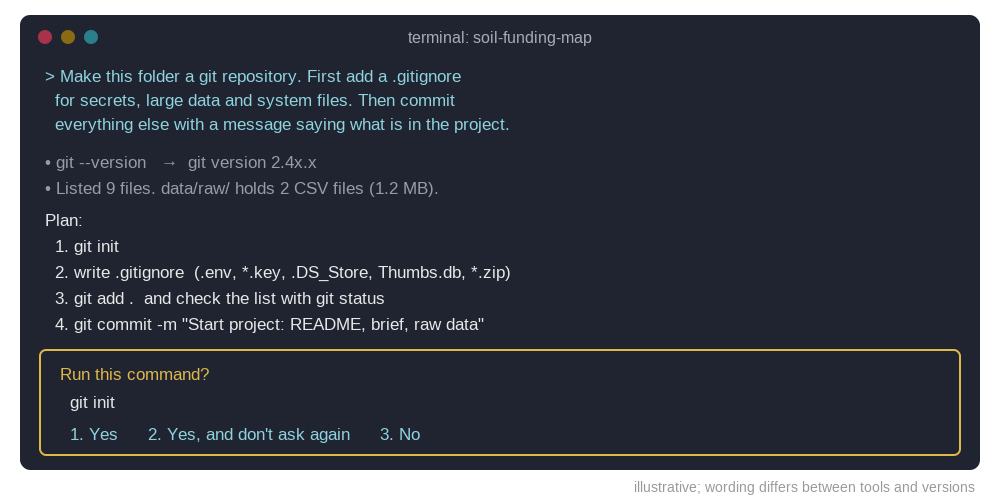
Making the project a repository is one prompt
.gitignore keeps some files out of the snapshots
A file once committed stays in the history
- Deleting a file later does not remove it from the earlier snapshots. Going back brings it back.
- So write
.gitignorebefore the first commit, and check what is about to be committed. - Ask: “List every file you are about to commit, and tell me if any looks like a secret, personal data or a large file.”
- If a secret got into a commit, treat it as leaked once the history is shared: change the password or key. Removing it from history is possible but fiddly; ask before anything is pushed.
A commit message is an entry in your lab notebook
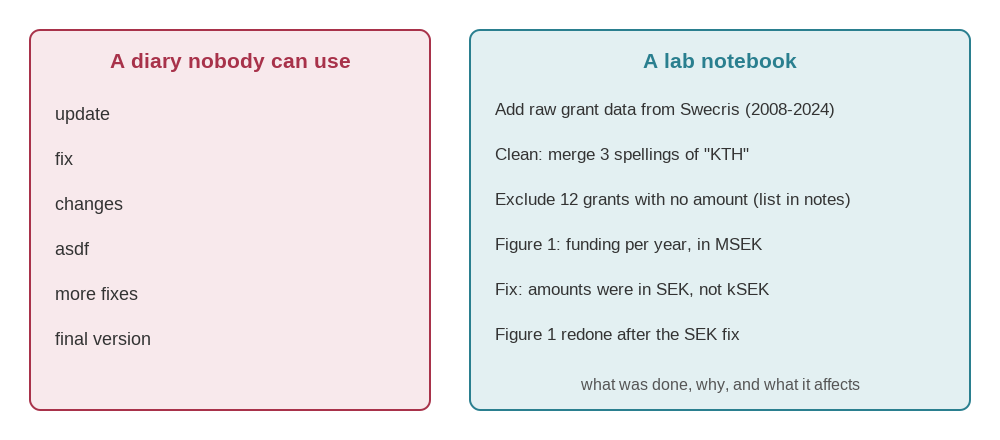
Ask for the message you want: what, why, and what it affects
Commit the changes with a message. First line: what we did, in plain
words. Then a few lines: why, which files and results it affects, and
any numbers that changed (rows removed, n per group).
Show me the message before you commit.
An example of what you might get back:
Exclude grants with no amount from the funding analysis

12 of 3,481 grants have an empty amount field (listed in
notes/excluded-grants.md). clean.py now drops them; results/clean.csv
regenerated. Totals per year change by less than 0.1 %.Commit before and after every agent task
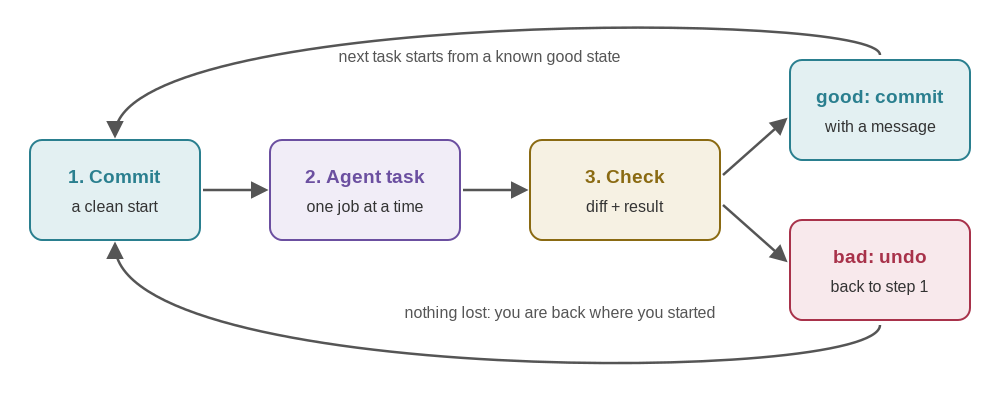
The history is your lab notebook
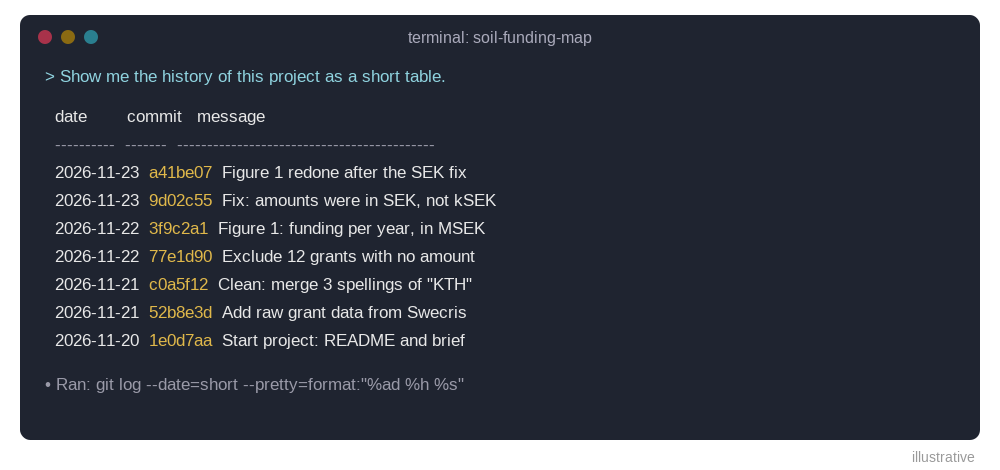
“What changed?” The diff shows every line
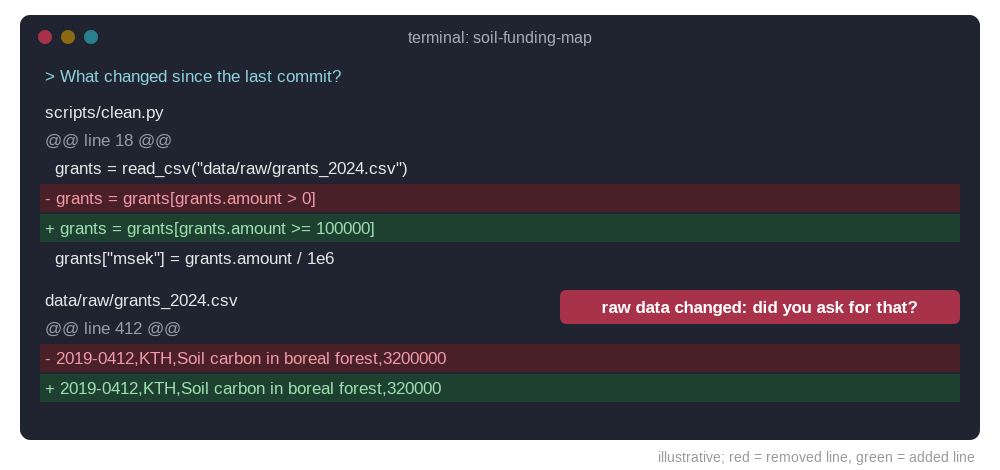
Reading the diff is how you check the agent’s work
- Which files? “List the files you changed, created or deleted since the last commit.” Anything unexpected is a question.
- Raw data changed? That should almost never happen. Ask why, and undo it.
- Explain it. “Explain this diff in plain words, file by file.” You do not have to read code to judge it.
- Size. You asked for a label change and 300 lines changed? Stop and ask.
- Results too. A changed script should come with changed results. A changed result with no changed script is suspicious.
The diff shows what changed. Whether the result is right is still your check, as in First delegations.
There are three ways to go back
“Undo your last change to clean.py” in practice
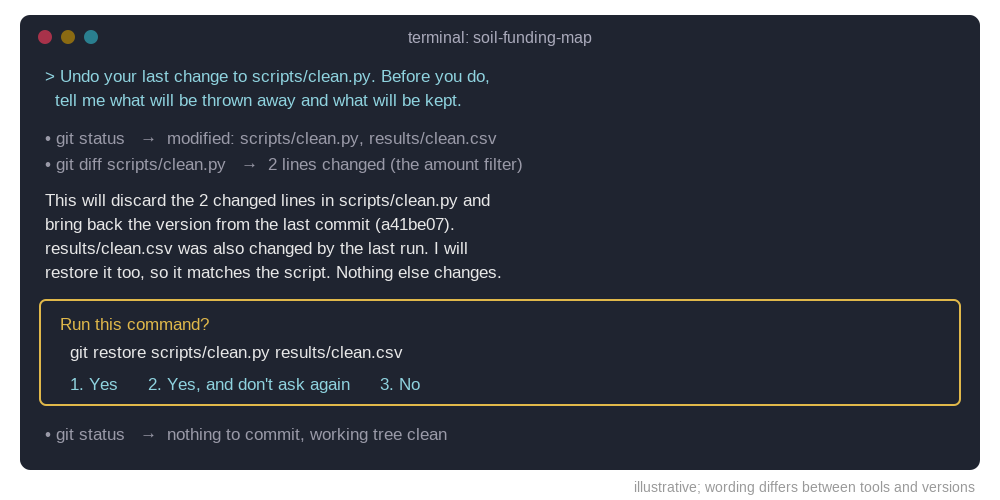
Some git commands throw work away: read before you approve
| Command you may see | What it does | Risk |
|---|---|---|
git status, git log, git diff, git show |
look | none |
git add, git commit |
take a snapshot | low |
git restore <file> |
discard uncommitted changes to that file | medium: those changes are gone |
git revert <commit> |
add a commit that reverses an old one | low: history is kept |
git reset --hard |
discard all uncommitted changes in the folder | high |
git clean -f |
delete files git does not track | high: they were never in any snapshot |
git push --force (next unit) |
overwrite the shared history | high |
If a request contains one of the last three, say no and ask what it would delete.
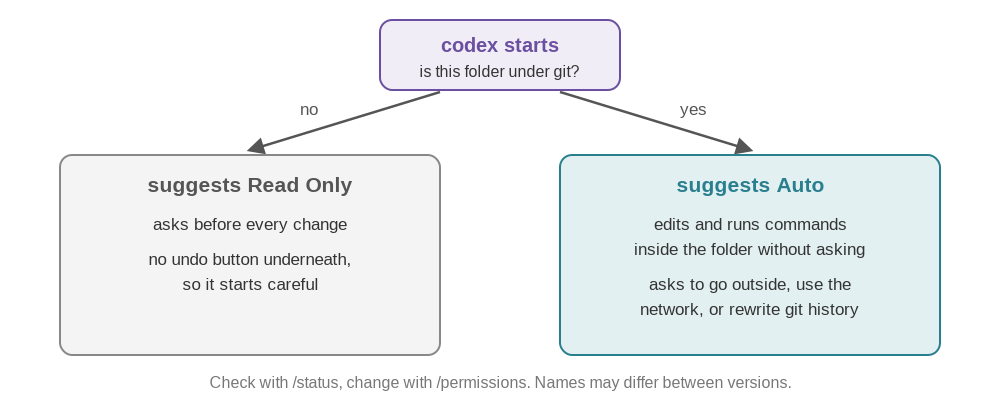
Codex treats a git folder differently
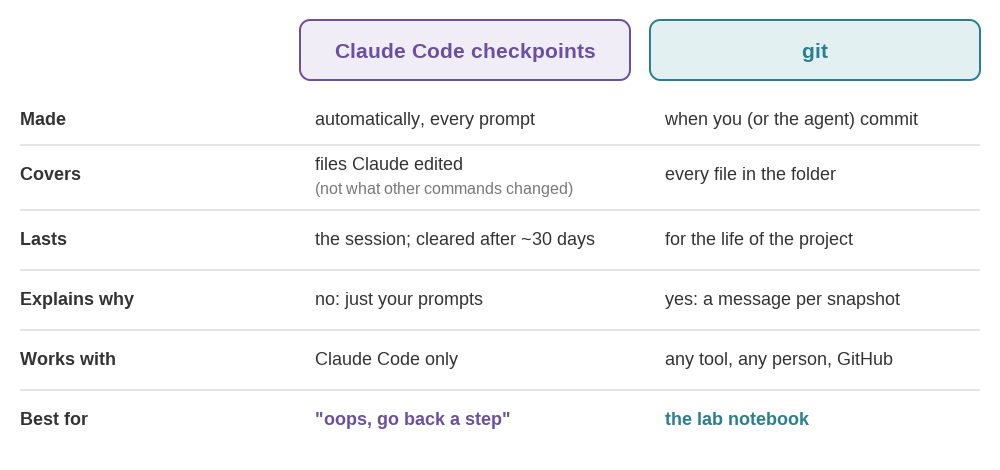
Claude Code has its own short-term undo: checkpoints and /rewind
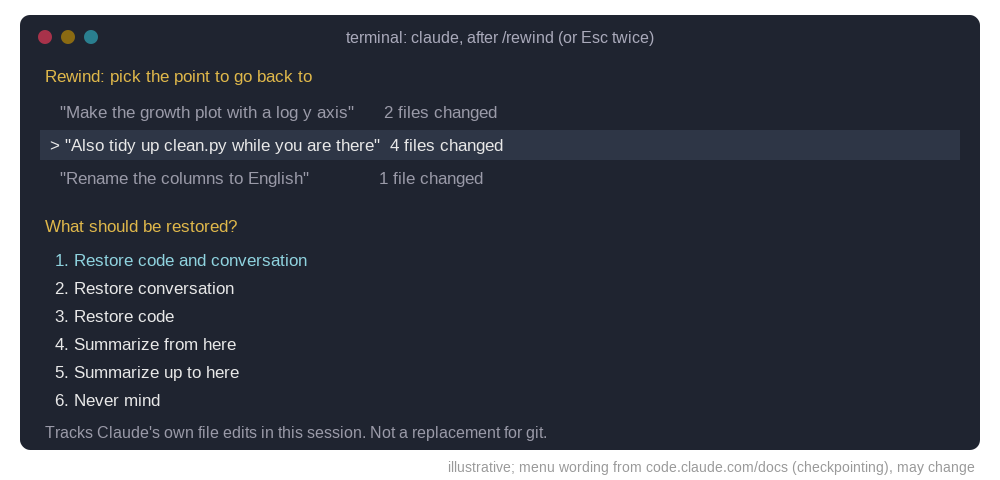
Checkpoints and git do different jobs: use both
Branches exist; you do not need them yet
- A branch is a parallel line of history: try something risky without touching the main line.
- You may see the word in the agent’s output, for example “on branch main”. That is just the name of your one line.
- For one person and one project, commit and undo are enough. Branches get a brief mention again in Parallel workers.
Where this goes wrong
- Committing too rarely. One commit for a week of work cannot be partly undone. Commit per task.
- Secrets or personal data committed. They stay in the history. Ignore first; check the file list.
- Approving a destructive command.
reset --hardandclean -fdelete for real. Ask what will be lost. - Messages that lie. The agent writes what it believes it did. Read the message against the diff.
- Git is not a backup. The history lives in the folder. Laptop stolen, folder gone: history gone. Backups, and GitHub next.
- Large files. Big images or data make the repository slow and cannot go to GitHub later. Keep them out.
- Only the diff checked. The diff says what changed, not whether the result is right.
- Your session will look different. The commands and wording vary. The checks do not.
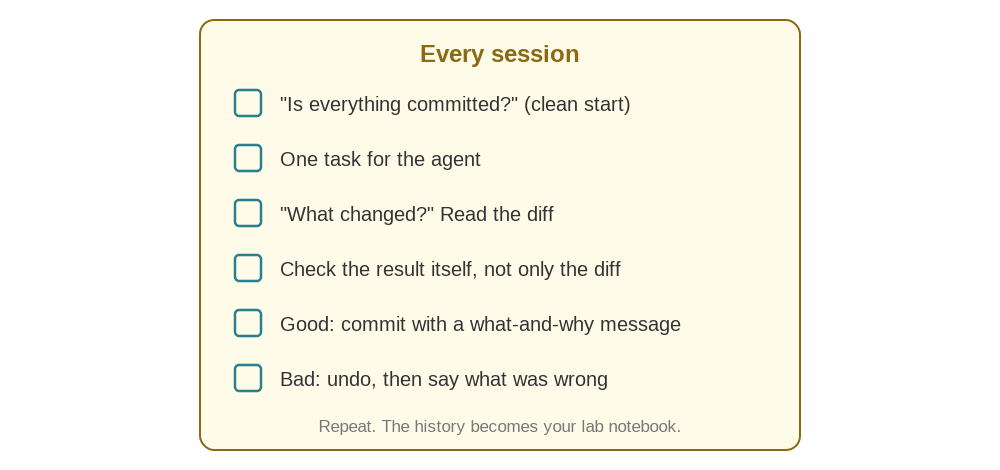
A routine for every session
Summary
| Concept | Key fact |
|---|---|
| Commit | a snapshot of the whole folder, with author, date and message |
| History | the list of commits: your project’s lab notebook |
| Diff | exactly which lines changed; the way to check what the agent did |
| Going back | discard uncommitted edits, restore an old file, or revert a commit |
.gitignore |
secrets, personal data, large files and junk stay out; write it first |
Summary (continued)
| Concept | Key fact |
|---|---|
| Commit message | what, why, what it affects; the agent writes it, you check it |
| Rhythm | commit before and after every agent task |
| Dangerous commands | reset --hard, clean -f, push --force: ask what will be lost |
| Codex in a git folder | suggests Auto instead of Read Only |
| Claude Code checkpoints | /rewind for quick session undo; complements git, does not replace it |
Next (Reproducible figures): a figure made by a script, committed together with the script, that you can remake on new data in one sentence.